 Pressleaf
Save any web page or AI chat as a clean PDF.
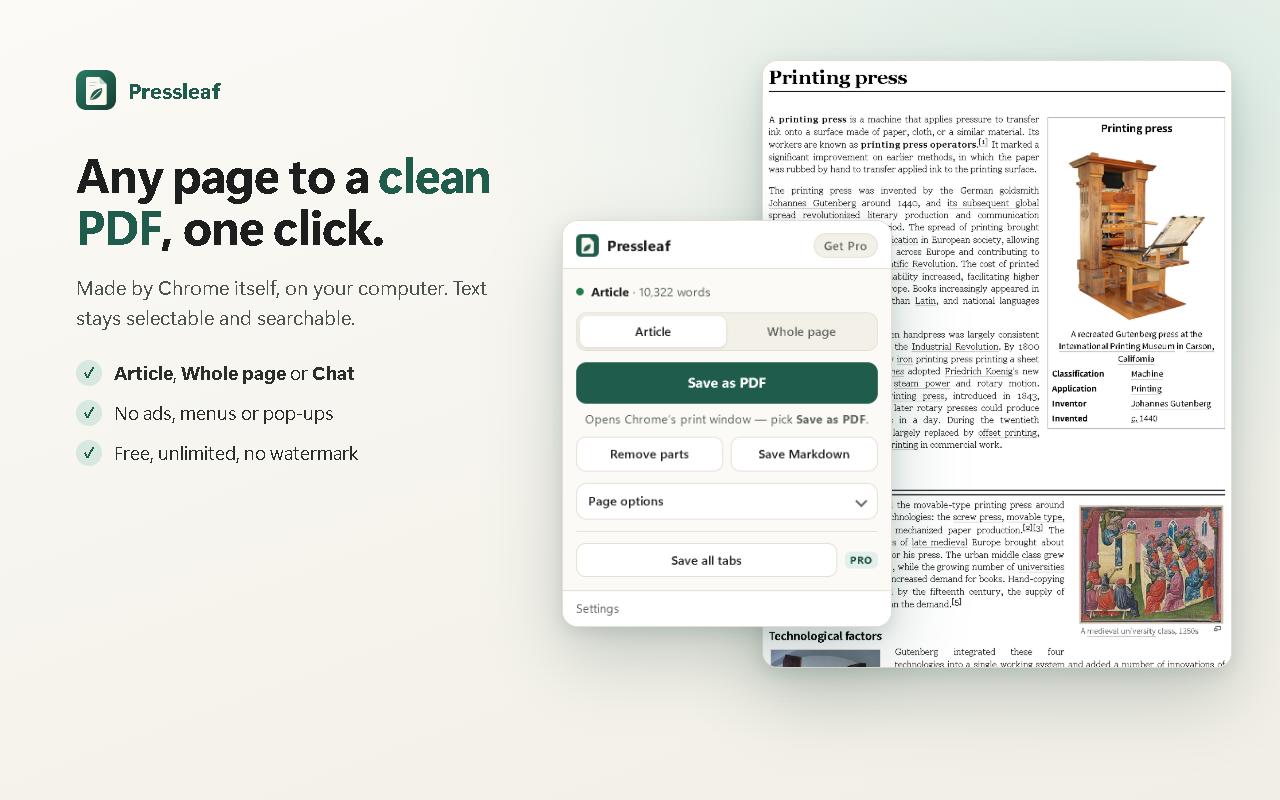
Pressleaf is a Chrome extension that saves any web page or AI chat as a clean PDF, made by Chrome itself on your computer. No menus, ads or pop-ups — and full ChatGPT, Claude and Gemini conversations, not just the part on screen.
No watermark · No account · No daily limit
Three ways to save, one click each
Article
Just the story or the docs page: headline, text, images, tables and code. Menus, ads, comments and “read next” boxes are left out.
Whole page
Everything on the page, minus cookie banners, pop-ups and sticky bars that would otherwise repeat on every sheet.
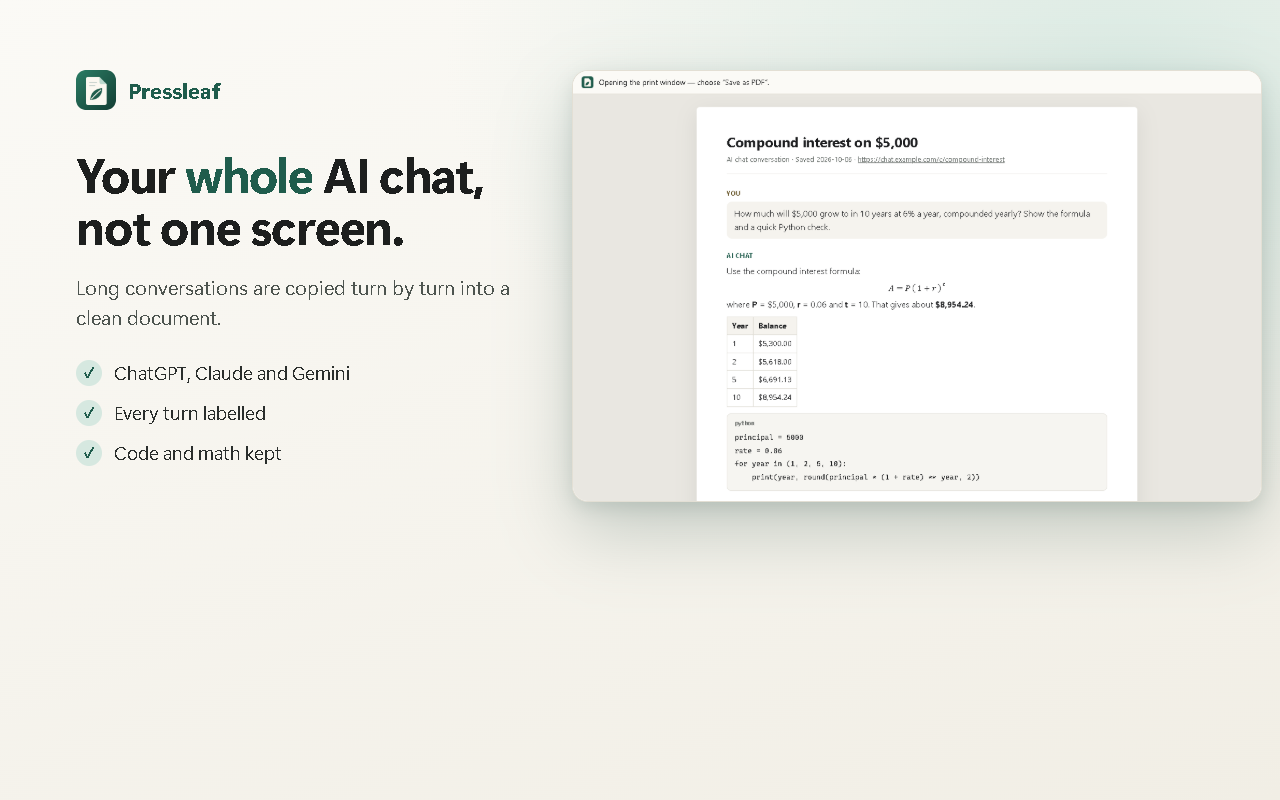
AI chat
The whole conversation from ChatGPT, Claude or Gemini — every turn, labelled — with the sidebar and message box gone.
Made by Chrome itself, on your computer
Pressleaf prepares the page and hands it to Chrome’s own print engine. That is why the result reads like a real document:
- Selectable, searchable text — not a screenshot glued into a PDF.
- Math, code and every language keep their formatting, including Chinese, Japanese, Korean and right-to-left scripts.
- Logged-in pages work, because nothing is re-downloaded by a server.
- Dark pages print light, lazy images are loaded, and long chats are unrolled first.
Leave out anything with a click
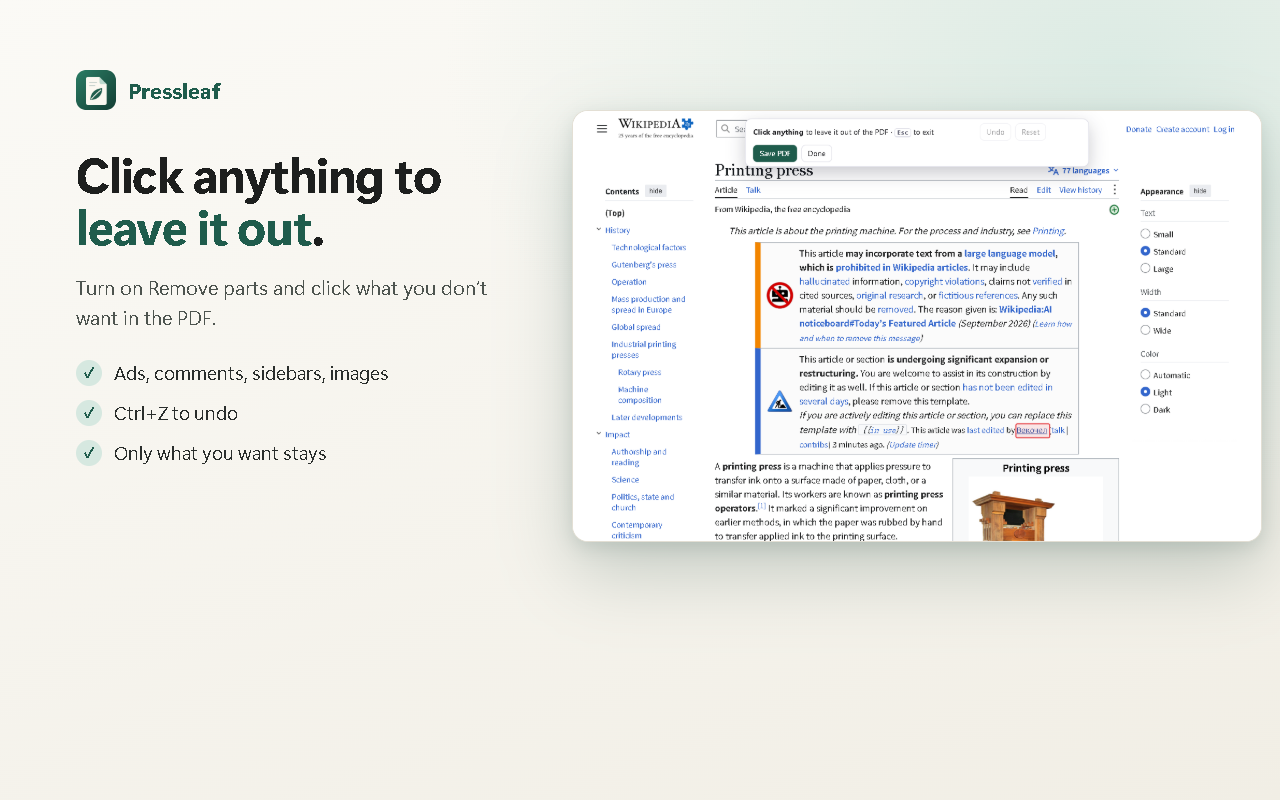
Turn on Remove parts and click the bits you don’t want — a comment thread, a banner, a sidebar, an image. They disappear from the PDF. Ctrl+Z brings them back.
Pick paper size (Letter, A4, Legal), margins and text size, keep or drop images, and save as Markdown when you want plain text.
Private by design
Reads a page only when you ask
No access to the sites you visit until you click Pressleaf, press Alt+Shift+P or use its right-click menu.
Nothing uploaded
Pages become PDFs on your computer. The only thing sent to us is a random ID to check a Pro license.
No account, no ads
Install and save. No sign-up, no tracking, no selling data.
Free for everything you need. Pro saves clicks.
Free
- Unlimited PDFs, no watermark, no account
- Article only, whole page, or full AI conversation
- Remove any part of the page before saving
- Dark pages printed light; paper size, margins, text size, images on/off
- Save as Markdown
Pro
or $9 / year
- Skip the print dialog: one click and the PDF is in your Downloads
- Save every open tab as its own PDF in one go
- Header and footer with the page title, date, source link and page numbers
- Your own file names, e.g. "{date} {title}"
Frequently asked questions
Is Pressleaf free?
Yes. Saving pages and AI chats as PDF is free with no daily limit, no watermark and no account. Pro ($19 once or $9 / year) only adds time-savers: skipping the print window, saving all tabs at once, headers and footers, and custom file names.
How do I save a ChatGPT conversation as a PDF?
Open the conversation, click the Pressleaf icon and press Save as PDF. Pressleaf recognises ChatGPT, Claude and Gemini, copies the whole conversation into a clean page (your messages and the replies, labelled), drops the sidebar and message box, and opens Chrome’s print window with Save as PDF. Code blocks and math keep their formatting.
Why not just use Chrome’s Print → Save as PDF?
Chrome’s built-in Save as PDF prints the page exactly as it is: menus, ads, cookie banners and sticky headers included, dark pages come out dark, and on AI chat sites the conversation often sits in a scrolling box that does not print in full. Pressleaf uses that same Chrome print engine, but prepares the page first.
Does it work on pages behind a login?
Yes. Pressleaf prints the page you are looking at, in your own browser, so pages behind a login, intranet pages and local files you open in Chrome work the same as public pages. Nothing is sent to a server to be re-downloaded.
What does Pressleaf do with my data?
Nothing leaves your computer except a random ID used to check a Pro license. Pressleaf can read a page only after you click it, press its shortcut or use its right-click menu (Chrome’s activeTab permission), and it never uploads page content. See the privacy policy.
Can I remove parts of a page before saving?
Yes. Click Remove parts, then click anything — an ad, a comment section, a sidebar, an image — and it is left out of the PDF. Undo with Ctrl+Z.
Which browsers does it work in?
Pressleaf is a Chrome extension. It also installs from the Chrome Web Store in other Chromium-based browsers such as Edge and Brave.
Save your first clean PDF
Free: unlimited PDFs, no watermark, no account. Pro: $19 once or $9 / year.
Coming soon to the Chrome Web Store